Table of Contents
One bad value in one component, and suddenly your users are staring at a completely blank page. No message, no way back, nothing. Error Boundaries are React's answer to that problem, and in this post I'll show you how to build one from scratch.
What are Error Boundaries?
Error Boundaries were introduced in React v16 as a way to catch tricky errors that occur during the render phase. Without one, an error thrown while rendering takes down the whole component tree: the app unmounts completely and the user just sees a blank web page, which is not ideal!
An Error Boundary is a component that wraps part of your tree. If anything inside it throws while rendering, the boundary catches the error and renders a fallback UI instead of letting the whole app crash.
You can learn more about React Error Boundaries via code snippets and interactive demos.
Let's get started
In this article, we'll build a React application from scratch and walk through Error Boundaries step by step.
Prerequisites
These are the versions I used when I wrote this:
Node v16.4.2npm v7.19.1- Visual Studio Code
Create a React application
Let's create a simple React application. Open a terminal in your project directory and run:
npx create-react-app clientNote (2025): Create React App has since been deprecated by the React team (announcement). For a new project today, a framework or a build tool such as Vite is a better starting point. Everything about Error Boundaries below works the same way.
Now let's open the project in Visual Studio Code:
cd client
code .
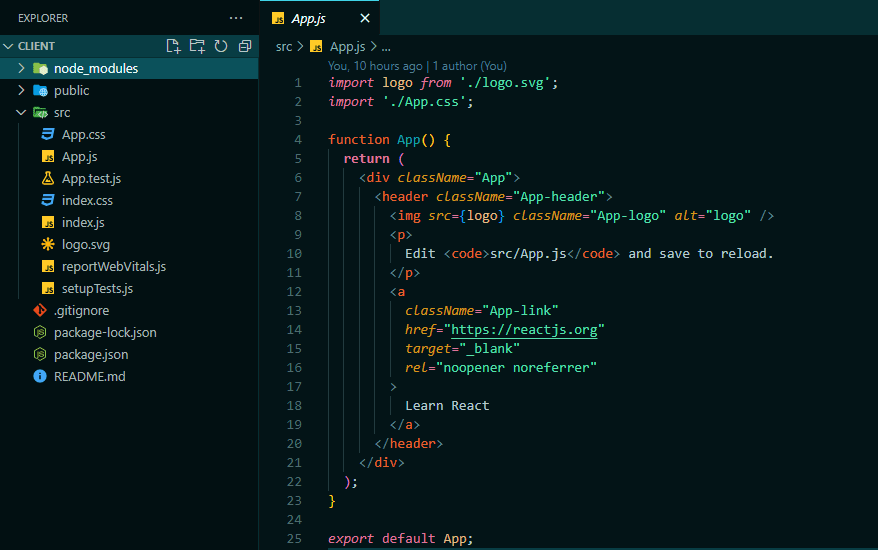
Cheers! Your folder structure should look something like this at this point:
Encountering errors without Error Boundaries
Unexpected is expected. We'll inevitably run into unexpected errors in our applications while we develop, test and even in production. You might try to loop through an array that doesn't exist, or access a nested object property that isn't populated yet. Most of the time you have control over how your application behaves, but sometimes you don't.
Simulate the error
Let's create a file named BugDemo.js. The following component will help you understand what normally happens in a React application without any Error Boundary.
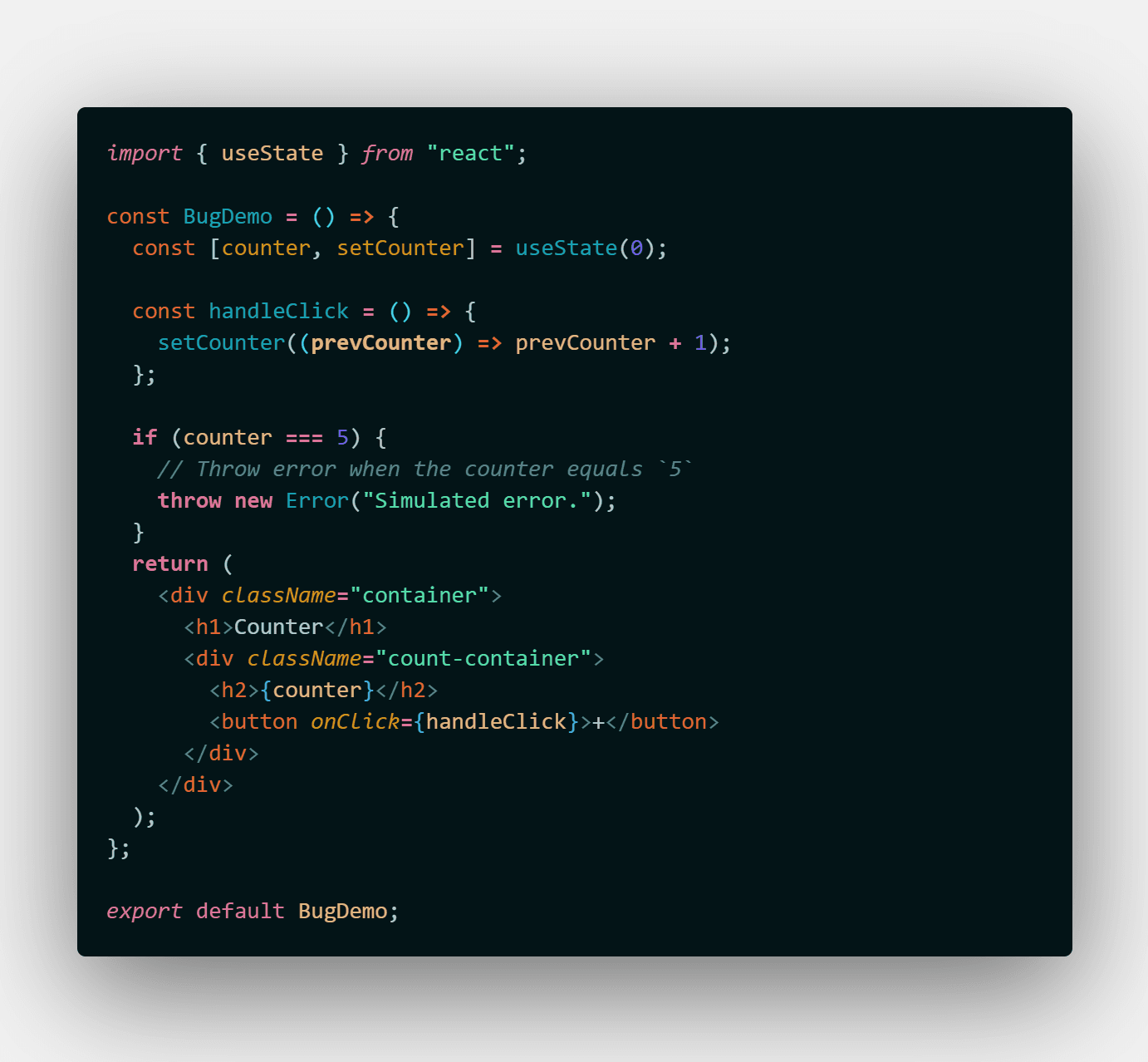
If you'd like something to copy and paste, here's an equivalent version:
import { useState } from 'react';

function BugDemo() {
  const [counter, setCounter] = useState(0);

  if (counter === 5) {
    // Simulate a rendering error
    throw new Error('Oops! The counter crashed.');
  }

  return (
    <div>
      <h2>Counter: {counter}</h2>
      <button onClick={() => setCounter((c) => c + 1)}>+</button>
    </div>
  );
}

export default BugDemo;
If you import the component in App.js and run the application with npm start or yarn start, you'll see the screen below.
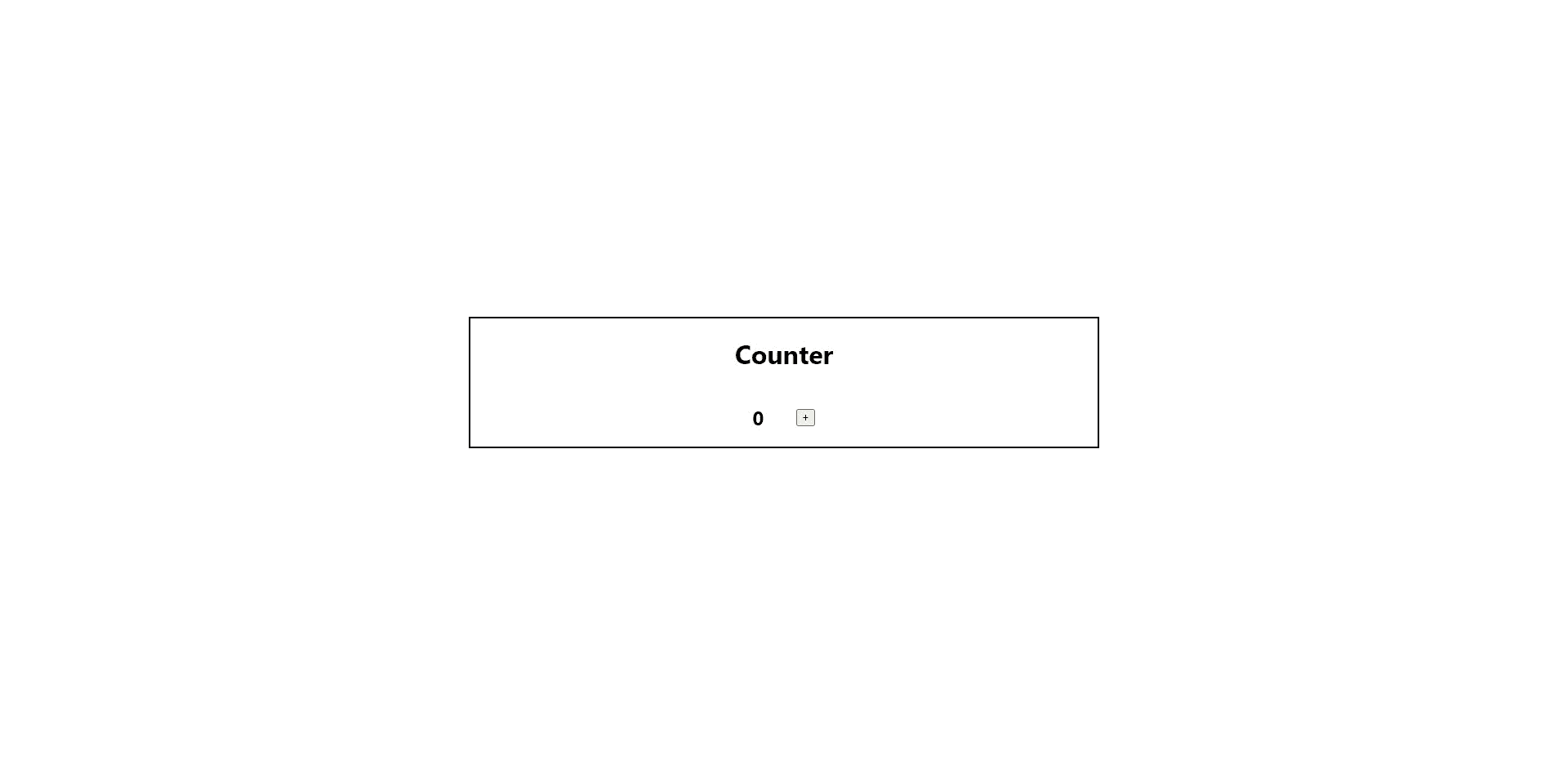
When we keep pressing the plus button, the counter value increases. But what happens when the counter reaches 5?
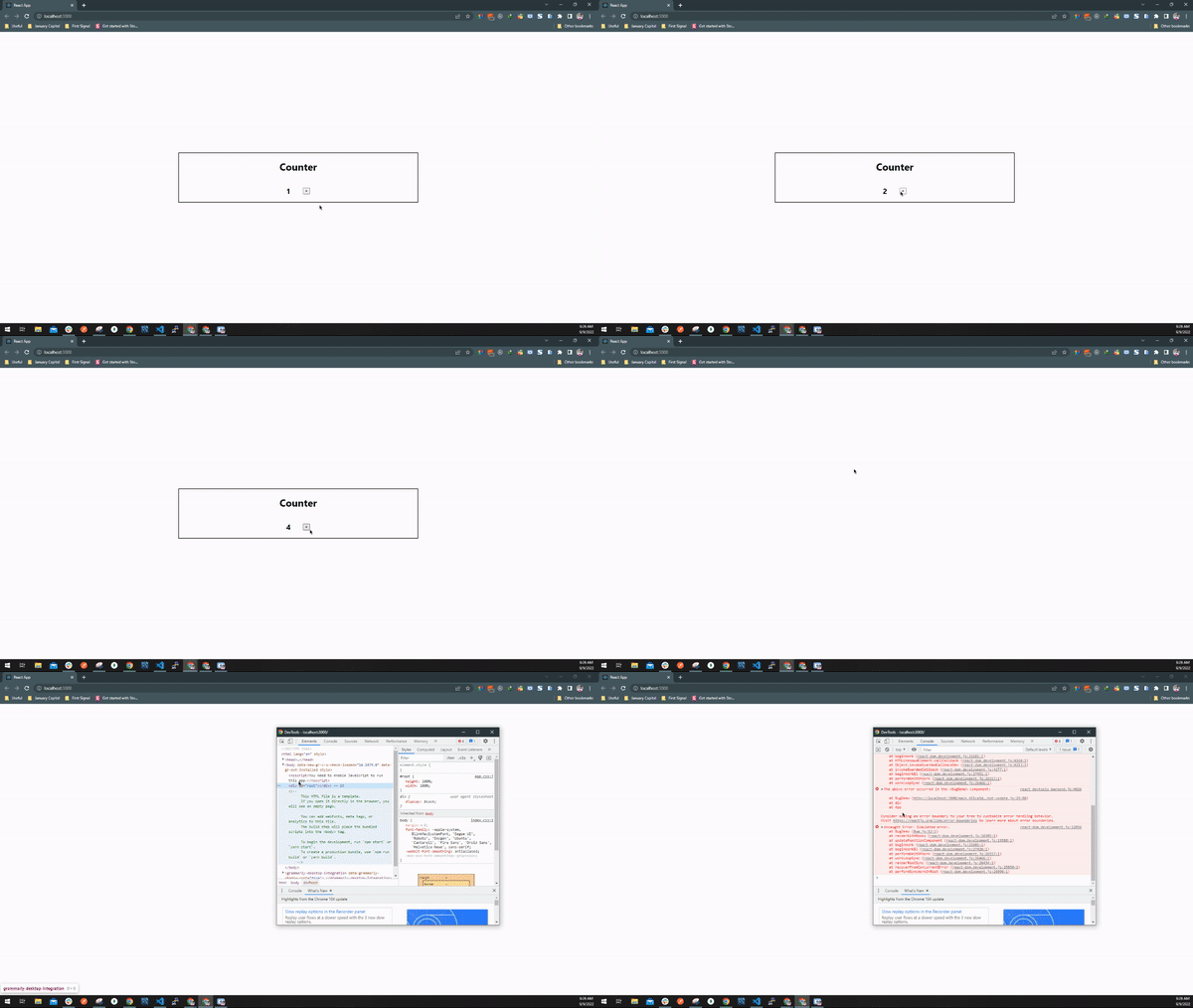
Yes! A blank screen, and a shocked end user. Sometimes the whole application can crash like this, which is exactly why Error Boundaries are so important.
 GIF via GIPHY
Solve the problem with Error Boundaries
Create a new file in the component/ directory and paste in the code below.
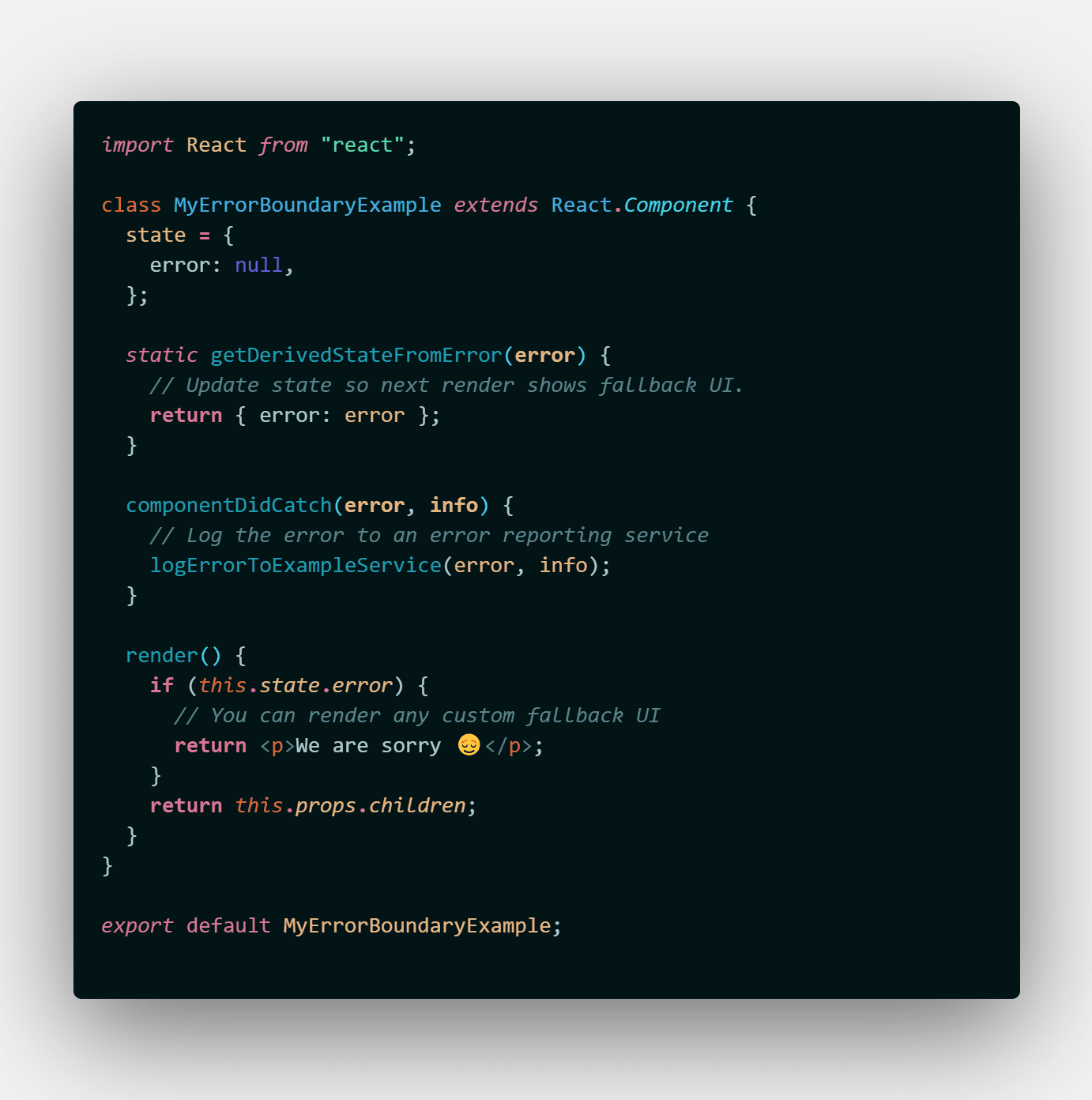
If you'd like to follow along in text, here's what a typical Error Boundary looks like:
import { Component } from 'react';

class ErrorBoundary extends Component {
  constructor(props) {
    super(props);
    this.state = { hasError: false };
  }

  static getDerivedStateFromError() {
    // Update state so the next render shows the fallback UI
    return { hasError: true };
  }

  componentDidCatch(error, info) {
    // A good place to log the error to a reporting service
    console.error(error, info.componentStack);
  }

  render() {
    if (this.state.hasError) {
      return <h2>Something went wrong.</h2>;
    }
    return this.props.children;
  }
}

export default ErrorBoundary;
Two lifecycle methods do the work here:
static getDerivedStateFromErrorruns when a child throws during rendering and lets you switch to the fallback UI.componentDidCatchruns after the error is caught, so it's the place for side effects such as logging.
Notice that this is a class component. According to the React docs, there's currently no way to write an Error Boundary as a function component. If you'd rather not write the class yourself, the react-error-boundary package does it for you.
Now, let's wrap our imported BugDemo component with the newly created Error Boundary in App.js, like this:
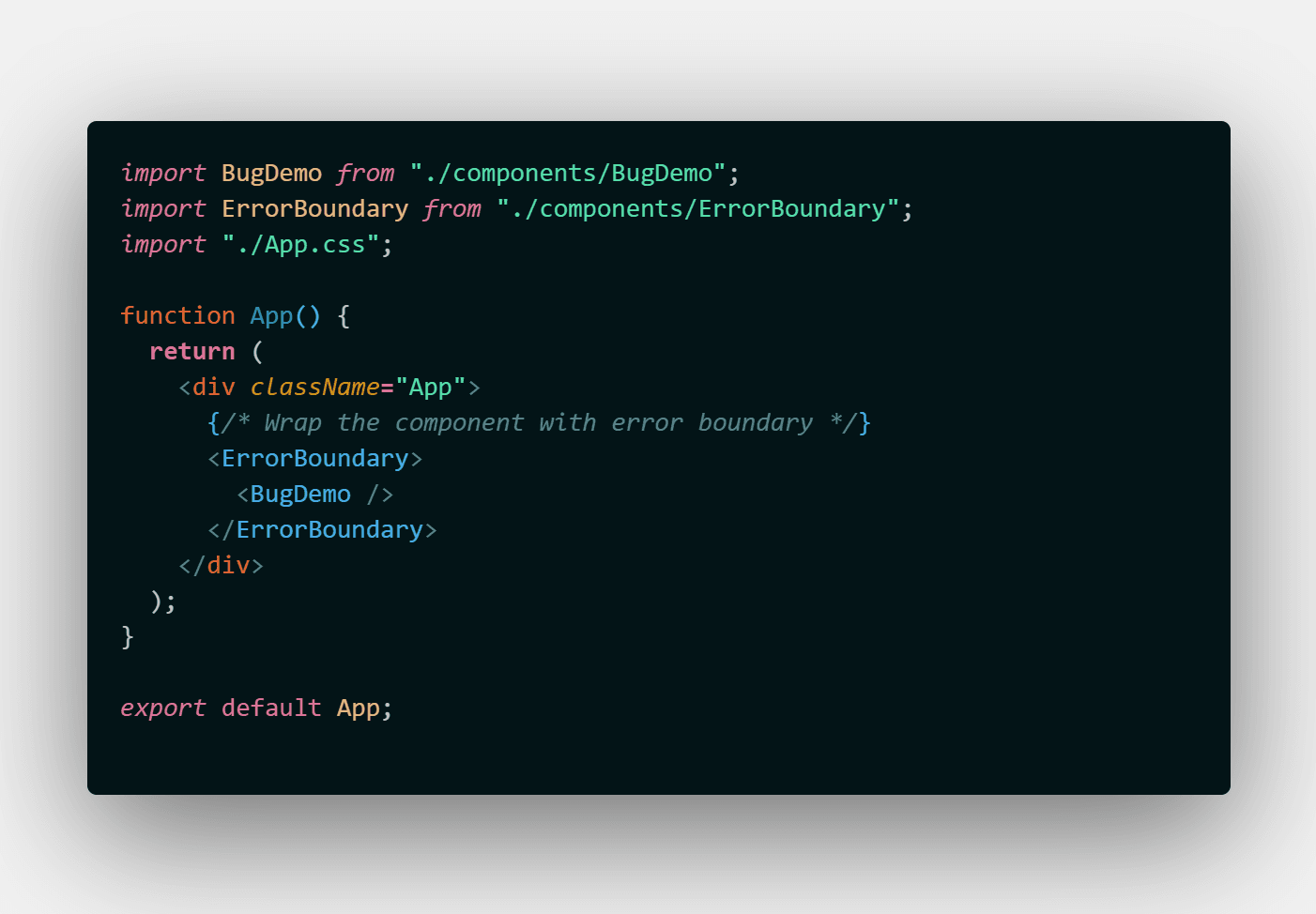
import BugDemo from './component/BugDemo';
import ErrorBoundary from './component/ErrorBoundary';

function App() {
  return (
    <ErrorBoundary>
      <BugDemo />
    </ErrorBoundary>
  );
}

export default App;
The moment of truth
Let's check what happens now when the user reaches a counter value of 5. No more blank screens!
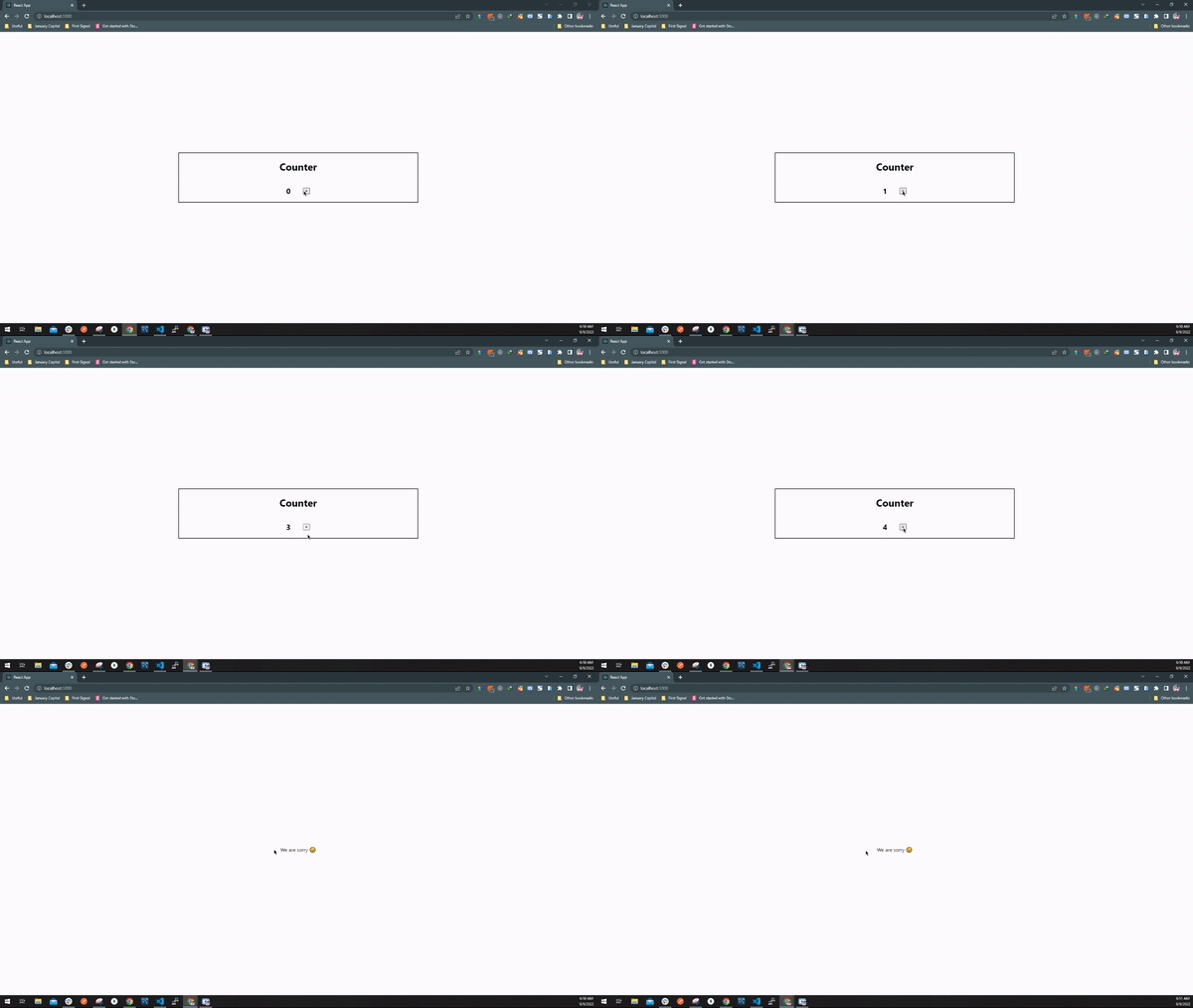
Likewise, you can show a helpful error message to the user, or retry the task that was failing before, if that's possible.
What Error Boundaries don't catch
Error Boundaries only catch errors thrown while rendering their children. As the React docs point out, they won't catch errors in:
- event handlers (use a regular
try...catchthere) - asynchronous code such as
setTimeoutcallbacks - server-side rendering
- the Error Boundary itself (only its children)
Wrapping up
With React 16 and later, Error Boundaries are generally available to use. The common standard is to have at least one Error Boundary at the root of your application. It improves the user experience (UX) of your app and stops users from seeing blank or crashed pages.
Key takeaways:
- An uncaught rendering error unmounts your whole React tree, leaving a blank page.
- An Error Boundary catches those errors and renders a fallback UI instead.
- Use
getDerivedStateFromErrorto show the fallback andcomponentDidCatchto log the error. - Put at least one boundary at the root, and consider extra ones around risky sections so one failure doesn't take down the whole page.
Originally published on dev.to.
